Security · 8 min read
Web Application Security: A Plain-English Guide for Small Businesses

Oasis Web Services
Somewhere right now, a bot is trying the front door of your website. It isn't personal. It's trying everyone's front door, all day, every day, with the patience of a toddler who has just discovered light switches.
Most of the time the door holds. But "web application security" is really about all the other doors: the booking form, the customer login, the online shop, the little admin page your old developer set up in 2019 and nobody has looked at since.
This guide explains what web application security means for a small business, which risks matter most, and the handful of habits that stop the majority of attacks. No jargon degree required.
What counts as a web application?
If your website does anything more than sit there looking nice, it's a web application. That includes:
- A contact or quote form
- Online booking or appointments
- A shop, basket or checkout
- Customer accounts, portals or logins
- An admin area where you edit content or see orders
- Anything that talks to another service behind the scenes, such as a payment provider, CRM or mailing list
Every one of those is a place where a stranger on the internet can send your site some data and see what happens. Web application security is making sure the answer is always "nothing interesting".
Why a firewall alone won't save you
People often assume security is a hosting problem: get a good host, add a firewall, job done. Those things help, and you should have them. But a firewall is a bouncer at the front door. It's good at spotting someone obviously dodgy. It has no idea that customer A just asked to see customer B's invoice.
That kind of mistake lives inside the application itself, in how it was built. So security has to be part of how a site is designed, written, tested and looked after, not something bolted on at the end.
What the numbers say
A few figures worth knowing, from sources that count this sort of thing properly:
- It's common. The UK government's Cyber Security Breaches Survey 2025/26 found that 43% of UK businesses had a breach or attack in the previous 12 months. For small businesses it was 46%, so being small is no hiding place.
- Phishing is the usual opener. The same survey found phishing was by far the most common type, reported by 38% of businesses.
- Unpatched software is the fastest-growing way in. Verizon's 2026 Data Breach Investigations Report found that exploiting known weaknesses in software has overtaken stolen passwords as the most common way breaches start.
- Access control is the top risk. The OWASP Top 10, the industry's standard list of web application risks, puts "Broken Access Control" at number one in its 2025 edition. That's the invoice problem above: people seeing or doing things they shouldn't.
None of this needs a criminal mastermind. Most breaches happen because one ordinary safeguard was missing.
The risks that matter most, in plain English
The OWASP Top 10 is written for developers, so here are the ones most likely to affect a small business site, translated.
People getting into the wrong rooms
Broken access control means the site doesn't properly check who is allowed to do what. Change a number in a web address from /order/1041 to /order/1042 and, on a badly built site, you're looking at someone else's order. The fix is simple to describe: the server checks permission on every single request, not just the first one.
Settings left on "demo mode"
Security misconfiguration is the digital version of leaving the keys in the door. Default passwords, error messages that reveal how the site works, test pages left live, admin areas open to the world. Boring, common and very fixable.
Other people's code
Almost every website is built on top of software written by someone else: plugins, themes, libraries and frameworks. OWASP now lists "Software Supply Chain Failures" as its own risk. If one of those pieces has a hole and nobody updates it, your site has a hole too. Our post on PHP2Shell is a recent example of how fast that can go wrong.
Forms that trust too much
Injection happens when a site takes whatever a visitor types and passes it straight into a database or page. A well-built form treats every input as suspicious until proven otherwise, a bit like a shop checking banknotes under the light.
Weak logins
Authentication failures are about passwords and sign-in. Reused passwords, no two-factor authentication and no limit on how many guesses someone can make all make life easy for attackers using lists of leaked passwords.
Nobody watching
If something goes wrong and nobody is alerted, attackers can stay for weeks. OWASP lists "Security Logging and Alerting Failures" for exactly this reason. A break-in you spot on day one is a nuisance. One you spot on day ninety is a crisis.
Seven habits that stop most attacks
You don't need to do everything at once. These seven cover a surprising amount of ground.
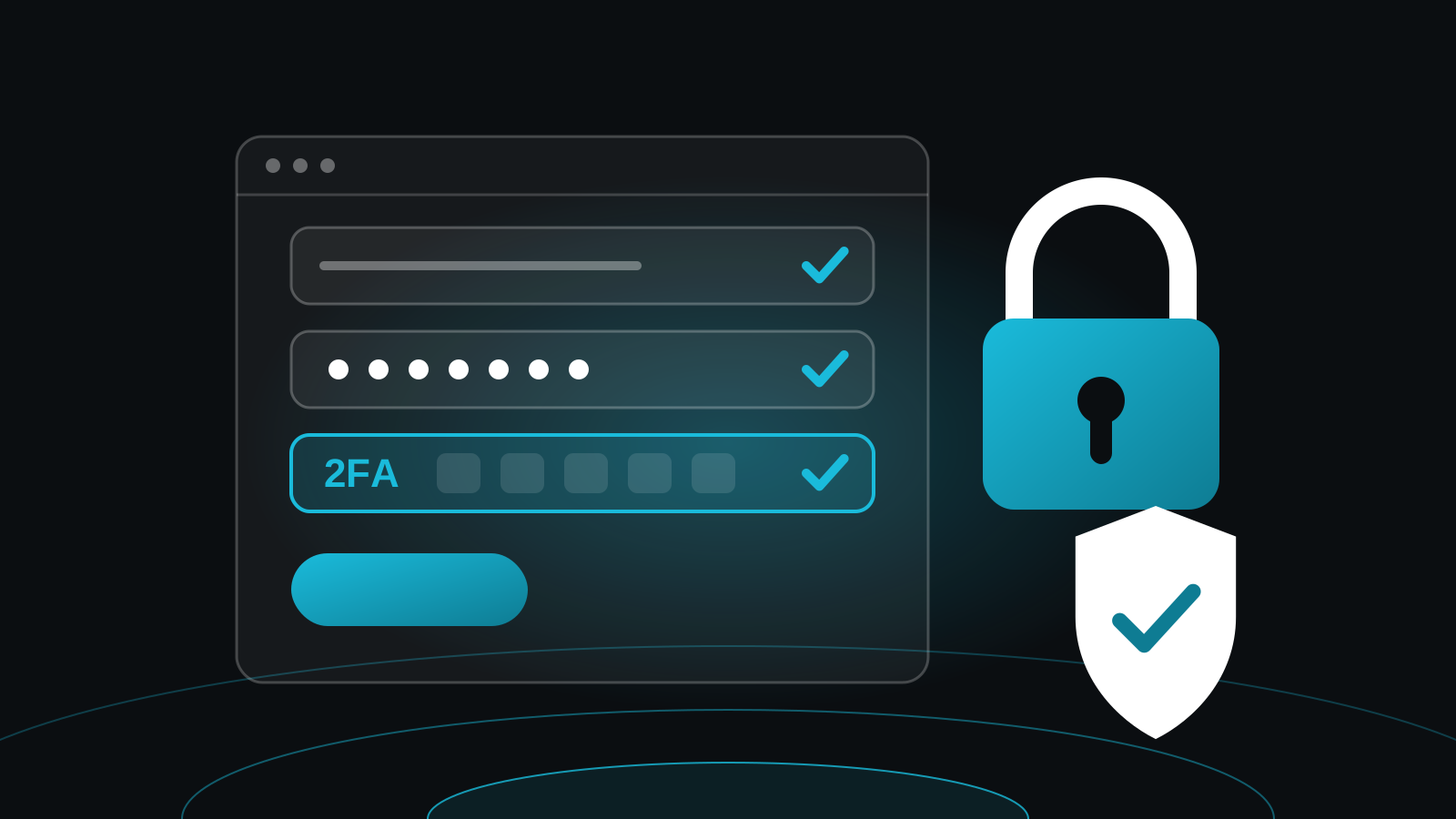
1. Turn on two-factor authentication everywhere
For your website admin, hosting account, domain registrar and email. If a service offers passkeys, use them. Current US government guidance (NIST) recommends long passwords, at least 15 characters if a password is the only thing protecting an account, and no more forced changes every 90 days. A password manager makes this painless.
2. Check permissions on the server, every time
This one is for your developer. Hiding a button is not security. Every request for data should be checked on the server against who is actually logged in.
3. Treat every input as suspicious
Forms should accept only what they expect: an email address that looks like an email address, a date that is actually a date. Anything shown back on a page should be made safe first. Good modern frameworks do a lot of this by default, which is one reason we use them.
4. Keep secrets out of the code
Passwords, API keys and payment credentials belong in a secure settings store, not written into the website's code where anyone with access to the files can read them. If a key ever leaks, it should be easy to swap.
5. Keep everything up to date
Your platform, plugins, libraries and the server software underneath them. Updates are not exciting, but they are where most security fixes arrive. Ideally someone has a set timescale for applying them, especially the urgent ones.
6. Add the security headers
Security headers are small instructions your site sends to browsers, such as "only load me over HTTPS" and "don't let other sites put me in a frame". They cost nothing in speed and close off several common tricks. You can check yours for free at securityheaders.com (opens in a new tab).
7. Log it, back it up, and test the backup
Keep a record of logins and important changes, and make sure someone gets an alert when something unusual happens. Keep backups away from the main server, and actually try restoring one now and then. A backup you've never tested is more of a hope than a plan.
Scanners versus people
Automated tools are great at catching known problems: out-of-date libraries, missing headers, passwords accidentally left in code. Run them regularly and they stop standards slipping.
What they can't do is think. A scanner won't notice that a discount code can be applied twice, or that a customer can view another customer's booking. Spotting that needs a person who understands how the site is meant to work and tries to make it misbehave. For a simple brochure site, a careful build and good maintenance go a long way. For anything handling payments, accounts or sensitive data, it's worth having a human test it before launch and after big changes.
Where to start this week
If this all feels like a lot, start at the top and work down:
- Turn on two-factor authentication for every account connected to your website.
- Ask whoever looks after your site when it was last updated, and how quickly urgent fixes go on.
- Remove plugins, user accounts and pages you no longer use.
- Check your security headers at securityheaders.com.
- Confirm backups exist, live somewhere separate and have been test-restored.
- If you take payments or store customer data, ask how access to that data is checked.
The UK's National Cyber Security Centre also has a free Small Business Guide (opens in a new tab), and its Cyber Essentials (opens in a new tab) scheme is a good next step if you want a recognised badge to show customers.
Questions to ask your web developer
- How does the site check that each user can only see their own data?
- Who applies security updates, and how quickly?
- Where are passwords and API keys stored?
- What security headers does the site send?
- How would we know if something went wrong, and who gets told?
- When did someone last test the site the way an attacker would?
A good developer will be happy to answer all six. If the answers are vague, that's an answer too.
How we approach it
We build sites on a modern framework that serves pre-built pages from a fast global network, so there is far less running on a server for attackers to poke at. Forms check what they receive on the server, keys stay out of the code, and security headers go on from day one. It's a bit like building a house with fewer windows: less to lock, less to forget.
If you'd rather someone else kept on top of updates and checks, our maintenance plan covers it, and you deal directly with the person who built your site. Not sure how your current site measures up? Get in touch and we'll take a look.
Sources
- Cyber security breaches survey 2025/2026 (opens in a new tab), GOV.UK
- 2026 Data Breach Investigations Report (opens in a new tab), Verizon
- OWASP Top 10:2025 (opens in a new tab), OWASP
- Digital Identity Guidelines: Authentication (SP 800-63B-4) (opens in a new tab), NIST
- Small Business Guide (opens in a new tab), National Cyber Security Centre